Table of Contents
How do I bill Assistive Technology (AT) claims?
To bill for AT Devices, you will need to send the following to DHS:
- Copy of the invoice.
- A copy of the assessment to determine the appropriate device needed.
- A copy of the IEP/IFSP/IIIP that identifies the recipient's need for the device.
Submit one unit cost for the complete device. Bill the device on one claim line; do not bill the device components separately.
To Create an AT claim:
- Select “Admin reporting” using the “Go to…” menu in the top right.
- Click on the “MA Forms” tab at the top.
- On the MA reports page, select your district from the “District” drop-down menu.
- From the MA Reports menu, click “Student Claims”.
- In the search criteria, enter the student's name which you are billing the AT Device for.
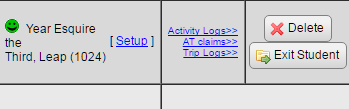
- When the student's record comes up in the list, click the “AT Claims »” blue link.
- On the AT Claims page, click “New AT Claim”.
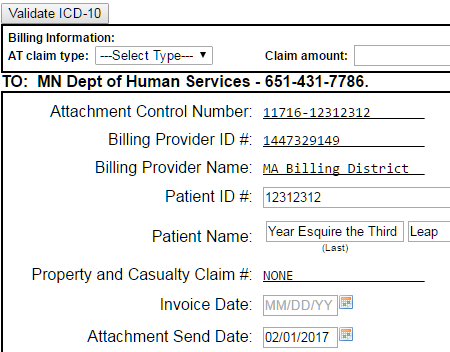
- On the “Uniform cover sheet for health care claim attachments”, enter the Billing Information:
- Select the AT Claim Type from the drop-down menu: (New, Rent, Repair, or Replacement).
- Enter the device cost in “Claim Amount”.
- Click “Save”, the claim will be stored in this student's AT Claims log.
- Click “Print” to print out the Cover Sheet for the claim.
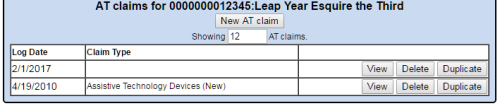
To View, Delete or Duplicate an Existing AT Claim:
- Navigate to the “AT Claims” page from the student's claim in MA Forms.
- Click the “View” button next to the Claim you want to view.
- Click the “Delete” button next to the Claim you want to delete.
- Click the “Duplicate” button next to the Claim you want to duplicate.
Enter AT Devices in the MA Billing Rate Setup:
- Navigate to “Admin reporting”.
- Click the “MA Forms” tab.
- From the MA Reports menu, choose your district in the drop-down menu.
- From the MA reports menu, click “Services setup”.
- Enter the National Code, National Modifier, Description and Rates (billing rate $1.00).
Do not include any spaces, hyphens or dashes between the modifiers.
Assistive Technology codes and modifiers:
- Code T1018 Modifier U7TMNU Assistive Technology Devices (New)
- Code T1018 Modifier U7TMRB Assistive Technology Devices (Repairs)
- Code T1018 Modifier U7TMRR Assistive Technology Devices (Rented)
- Code T1018 Modifier U7TMRA Assistive Technology Devices (Replace)
View the Department of Human Services Fact Sheet for more information on “Assistive equipment and technology”.
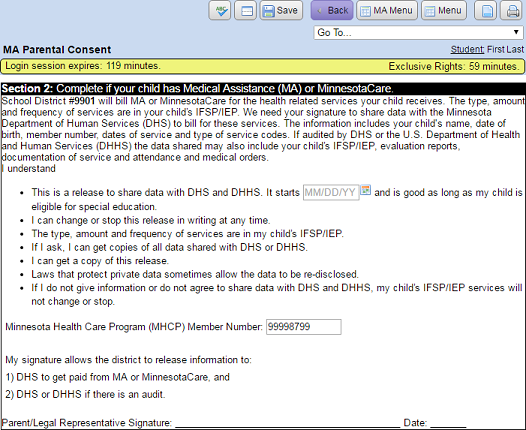
Complete the "Parental Consent" to bill DHS for Assistive Technology Devices" form:
- From the student's Form Menu, click the “MA Forms” tab.
- Click “MA Parental Consent”.
- Complete Section 2 to share data with the Department of Health & Human Services for assistive technology devices.
Other Forms to indicate need for Assistive Technology Devices:
- IEP Services and Modifications: Adaptive Equipment No or Yes and explanation.
- Assessments for Accountability: IEP Assessments (State/LEP) and (District-wide)
- IEP Classroom Adaptations and Modifications. Program Modifications, Supports and Adaptations in General and Special Education